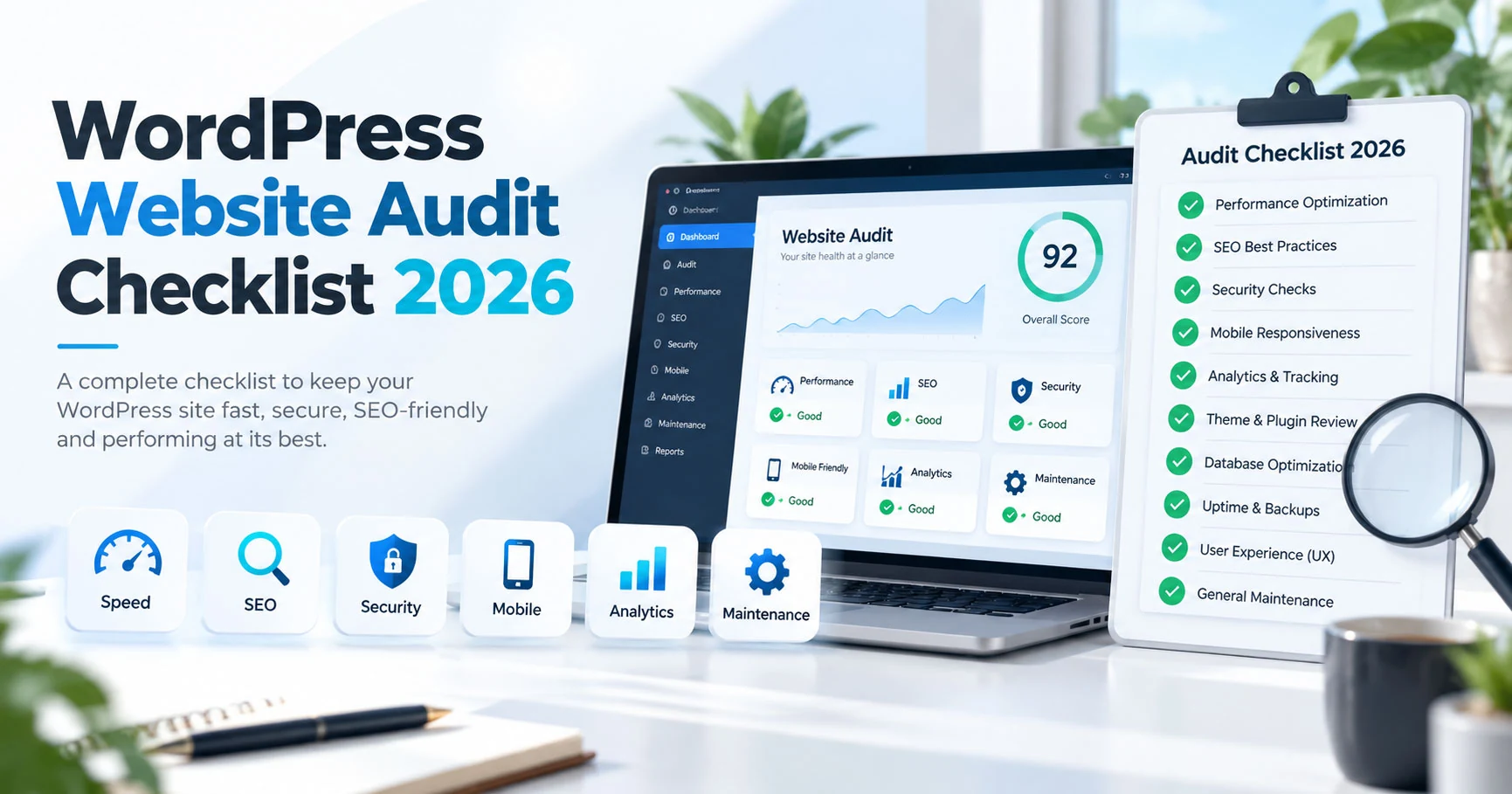
WordPress Website Audit Checklist for 2026: SEO, Speed, Security and Conversions

A WordPress website can appear completely normal while important problems remain hidden.
The homepage loads, the menu opens, and the contact page looks correct. But the website may still contain broken forms, outdated plugins, missing backups, indexing problems, slow mobile pages, invalid redirects, abandoned administrator accounts, analytics errors, or WooCommerce issues.
A website audit looks beyond the visible design.
It checks whether the site is technically healthy, understandable to visitors and search engines, reliable enough for the business, and maintainable after the review is complete.
Quick answer: A useful WordPress audit should review six major areas: technical health, security and backups, performance, SEO and indexing, user experience and conversion, and business-critical functionality such as forms, email, ecommerce and analytics. Findings should then be prioritized by risk and business impact instead of treated as one long list of equal problems.
What Is a WordPress Website Audit?
A WordPress website audit is a structured review of the website’s current condition.
It may cover:
- WordPress core.
- Theme.
- Plugins.
- PHP and hosting.
- Backups.
- Security.
- Performance.
- Mobile usability.
- Search indexing.
- On-page SEO.
- Internal links.
- Forms.
- Email.
- Analytics.
- Ecommerce.
- Accessibility basics.
- Content quality.
- Conversion paths.
An audit should not simply generate a score.
The useful output is a prioritized plan explaining what is wrong, why it matters, and what should happen next.
When Should You Audit a WordPress Website?
Before a redesign
You need to understand which parts of the current website should be preserved.
Before changing hosting
Forms, DNS, email, SSL, redirects, caching, and integrations should be documented before migration.
After traffic drops
A technical or content change may have affected crawling, rankings, performance, tracking, or user behavior.
When the website becomes difficult to maintain
Repeated plugin conflicts, Elementor problems, PHP errors, and failed updates may indicate deeper technical debt.
Before taking over a website from another developer
You should know what you are becoming responsible for.
Periodically for business-critical websites
Problems are easier to correct before they become emergencies.
Step 1: Create a Website Inventory
Start by understanding what exists.
Record:
- Hosting provider.
- Domain registrar.
- DNS provider.
- CDN.
- WordPress version.
- PHP version.
- Theme and child theme.
- Active plugins.
- Must-use plugins.
- Administrator accounts.
- Backup system.
- Security system.
- Forms.
- SMTP service.
- Analytics.
- Search Console.
- Payment gateways.
- Important integrations.
The inventory provides context for every later decision.
A plugin that appears unnecessary may be responsible for an important integration.
Never delete software simply because its purpose is not immediately obvious.
Step 2: Check WordPress Core, Theme and Plugins
Review whether WordPress, the theme and plugins are actively maintained.
Look for:
- Pending updates.
- Abandoned plugins.
- Duplicate functionality.
- Disabled plugins that are no longer needed.
- Multiple Elementor add-on packs.
- Plugins with no clear purpose.
- Custom code inside a parent theme.
- Old PHP compatibility requirements.
- Error messages after updates.
Do not update a business-critical website blindly just because updates are available.
Create a backup and use staging when an update could affect ecommerce, forms, memberships, bookings, custom code, or other important functionality.
Step 3: Verify the Backup System
A successful backup notification does not prove that the website can be restored.
Check:
- What is backed up?
- How often?
- Where is it stored?
- How many versions are retained?
- Is the database included?
- Are uploads included?
- Are backups stored outside the hosting account?
- Has a restore ever been tested?
A website with no verified recovery process has a much higher operational risk.
For important websites, keep more than one recovery option.
Step 4: Review Administrator Access
Old administrator accounts are easy to forget.
Review every user with elevated permissions.
Remove or reduce access for:
- Former developers.
- Previous agencies.
- Employees who no longer need access.
- Temporary accounts.
- Test accounts.
Use unique accounts rather than one administrator login shared by everyone.
Apply strong passwords and additional login protection where appropriate.
The goal is not to install every available security feature. It is to reduce unnecessary access and create a manageable system.
Step 5: Check Hosting and PHP
WordPress performance and reliability depend partly on the server.
Review:
- Supported PHP version.
- PHP memory limit.
- Storage.
- Inode limits.
- Database size.
- SSL.
- Server errors.
- Caching.
- Object caching where appropriate.
- Backup limits.
- Staging availability.
- Cron behavior.
Do not assume slow performance is always caused by Elementor or plugins.
A weak server can make an otherwise reasonable website feel slow.
At the same time, expensive hosting cannot fix badly optimized pages automatically.
Step 6: Measure Real Page Performance
Do not test only the homepage.
Check:
- Homepage.
- Main service page.
- Large blog post.
- Contact page.
- Important landing page.
- Product page.
- Cart and checkout where applicable.
Look for common problems:
Oversized images
A visually small image should not require downloading several megabytes.
Too many fonts
Multiple font families, weights, icon sets, and external requests increase page complexity.
Heavy third-party scripts
Chat tools, maps, analytics, advertising tags, video embeds, review widgets, and tracking tools can affect performance.
Excessive Elementor structure
Deeply nested containers, duplicated widgets, unnecessary animations, and several add-on packs can create avoidable overhead.
Poor caching
Caching must match the website.
WooCommerce, memberships, logged-in users, and dynamic pages need more careful rules than a static brochure website.
Performance work should focus on the real bottleneck rather than installing another optimization plugin immediately.
Step 7: Test the Mobile Website Manually
Responsive mode in a desktop browser is useful, but test on a real phone too.
Open the navigation.
Scroll every important page.
Submit the contact form.
Tap phone and email links.
Test accordions and popups.
Check:
- Text size.
- Button size.
- Horizontal scrolling.
- Sticky headers.
- Form fields.
- Keyboard behavior.
- Cookie banners.
- Image cropping.
- Long headings.
- Tables.
- Checkout.
A website can achieve a reasonable performance score and still have a poor mobile experience.
Step 8: Review Search Indexing
Search engines need consistent instructions about which URLs should appear in results.
Check:
- Indexable pages.
- robots.txt.
- XML sitemap.
- Canonical tags.
- noindex.
- HTTP status codes.
- Redirects.
- Duplicate pages.
- Staging domains.
- Test pages.
- Search results pages.
- Tag or archive pages where applicable.
An accidental noindex setting after a redesign or staging launch can cause serious visibility problems.
Similarly, a sitemap is useful only when it contains the URLs that should actually be indexed.
Step 9: Review Titles and Meta Descriptions
Important pages should have a unique title that describes their topic.
Avoid patterns such as “Home | Company” for every page.
A service page title should normally identify the service.
A blog title should identify the question or topic.
Meta descriptions do not need to contain every keyword.
Use them to communicate the value of opening the result.
Review especially:
- Homepage.
- Services.
- High-traffic blog posts.
- Portfolio pages.
- Product categories.
- Important products.
Step 10: Check Heading Structure
The design should not determine the semantic hierarchy accidentally.
A page should normally have one clear primary heading describing the main topic.
Subsections can then use H2 and H3 elements logically.
Do not choose heading levels only because one heading style looks visually larger.
Elementor allows typography and HTML structure to be controlled separately.
Use that flexibility.
Step 11: Review Content Quality
Ask whether each important page answers the questions a customer needs before taking action.
Service pages should explain:
- What the service is.
- Who needs it.
- Problems it solves.
- What is included.
- Important exclusions.
- Process.
- Proof.
- Relevant examples.
- Common questions.
- Next step.
Thin content cannot always be repaired by adding more words.
Sometimes the missing information is specificity.
A short paragraph containing real useful details can be more valuable than several paragraphs of generic marketing copy.
Step 12: Find Duplicate and Overlapping Content
Over time, websites often create several pages targeting almost the same intent.
For example:
- WordPress support.
- WordPress help.
- WordPress maintenance.
- WordPress care.
- WordPress technical assistance.
These may represent different services, or they may be five thin pages saying essentially the same thing.
Decide whether each URL has a clear independent purpose.
Merge weak overlapping pages when appropriate and redirect removed URLs carefully.
Step 13: Audit Internal Links
Internal links help users discover relevant information and help search engines understand site relationships.
Check whether:
- Blog posts link to relevant services.
- Services link to useful guides.
- Case studies link back to the service performed.
- Important pages are accessible from navigation or contextual links.
- Old URLs are still linked internally.
- Links pass through unnecessary redirects.
- Anchor text describes the destination.
Do not create internal links mechanically.
Add them when the destination genuinely helps the reader continue the topic.
Step 14: Check Broken Links and Redirects
A broken link reduces trust and can block an important customer journey.
Crawl the site and review:
- 404 pages.
- Broken internal links.
- Broken images.
- Redirect chains.
- Redirect loops.
- Old domains.
- HTTP links.
- Missing downloads.
One direct redirect from an old URL to its final replacement is normally better than several redirects chained together.
Step 15: Review Canonical URLs
Canonical tags help indicate the preferred version of a page when similar URLs are accessible.
Check consistency between:
- HTTP and HTTPS.
- www and non-www.
- URLs containing parameters.
- Paginated content.
- Duplicate product URLs.
- old and new domains.
The canonical should support the actual site structure rather than conflict with redirects, internal links, and sitemap URLs.
Step 16: Review Structured Data
Structured data should describe the real visible content.
Depending on the site, useful markup may include:
- Organization.
- Person.
- LocalBusiness where appropriate.
- Article or BlogPosting.
- Breadcrumbs.
- Product.
- Other supported types relevant to the page.
Validate the implementation and remove inaccurate or outdated information.
Do not add rating, business, product, or FAQ markup simply because you hope it will generate a larger search result.
Markup should represent reality.
Step 17: Review Author and Trust Signals
For expert content, identify the author clearly.
Include:
- Name.
- Photo.
- Professional role.
- Relevant experience.
- About page.
- Portfolio.
- External professional profiles where useful.
For a service business, also review:
- Business name.
- Contact information.
- Privacy policy.
- Terms.
- Testimonials.
- Case studies.
- Real project examples.
Trust is built across the complete site.
Step 18: Test Every Contact Form
This is one of the most important audit steps.
Submit each form yourself.
Do not stop after seeing a green success message.
Confirm:
- Validation works.
- The message reaches the correct inbox.
- Reply-to details are correct.
- SMTP logs show successful delivery.
- Autoresponders contain accurate information.
- Spam protection works.
- Mobile submission works.
- Analytics records the conversion if required.
A beautiful website that silently loses enquiries is a business problem, not only a technical bug.
Step 19: Check Email Configuration
WordPress email can fail for reasons unrelated to the visible form.
Review:
- SMTP provider.
- Sending domain.
- DNS authentication.
- Sender address.
- Form recipients.
- Error logs.
- Mail limits.
- Spam folders.
If the website has recently moved to a new server, test email again.
Hosting migrations frequently expose mail configuration problems.
Step 20: Verify Analytics
Analytics should answer useful business questions.
Check whether the tracking code is present once and only once.
Confirm:
- Page views.
- Form conversions.
- Important button clicks.
- Ecommerce tracking.
- Consent behavior where applicable.
- Referral traffic.
- Campaign parameters.
Do not collect dozens of events simply because they are easy to configure.
Track actions that help you make decisions.
Step 21: Review Search Console
Search Console can reveal problems that are not visible while browsing the site.
Review:
- Indexing.
- Sitemap status.
- Manual actions.
- Security issues.
- Search performance.
- Top landing pages.
- Queries.
- Countries.
- Devices.
- Core Web Vitals.
- Structured data reports where available.
Compare recent performance with earlier periods before concluding that a traffic change is caused by a website problem.
Seasonality, demand, competition, ranking changes, and tracking changes can all affect the numbers.
Step 22: Check the Conversion Journey
Open the website as if you know nothing about the business.
Can you quickly answer:
- What does this business do?
- Who is the service for?
- Why should I trust them?
- What does the service include?
- Can I see relevant work?
- How do I get started?
Look for friction.
A website may receive visitors but generate few enquiries because the offer is unclear rather than because the button color is wrong.
Step 23: Review Calls to Action
Buttons should describe the next step.
Examples include:
- Request a Quote.
- Discuss Your Website.
- View WordPress Services.
- See the Case Study.
- Hire Me on Upwork.
Avoid filling every section with competing actions.
The most important action should remain visually and contextually clear.
Step 24: Audit WooCommerce Separately
Do not treat WooCommerce as another standard page.
Test the complete purchase process.
Review:
- Product pages.
- Variations.
- Pricing.
- Stock.
- Coupons.
- Cart.
- Checkout.
- Account creation.
- Payment.
- Tax.
- Shipping.
- Order email.
- Refund workflow.
- Mobile usability.
Perform controlled test transactions where appropriate.
A WooCommerce audit should also review scheduled tasks, webhooks, payment callbacks, and errors.
Step 25: Review Accessibility Basics
A complete accessibility audit can require specialist tools and manual testing, but basic checks should still be part of routine website work.
Review:
- Color contrast.
- Visible keyboard focus.
- Form labels.
- Heading order.
- Image alt text.
- Descriptive links.
- Keyboard navigation.
- Modal and popup behavior.
Do not rely on an accessibility overlay as a replacement for building accessible interfaces.
Step 26: Inspect Images and Media
Review large media files and unnecessary duplicates.
Check:
- Dimensions.
- Compression.
- Modern formats where appropriate.
- Alt text.
- Captions where useful.
- Lazy loading.
- Broken media.
- Old unused files.
Important article and portfolio images should be crawlable and relevant to the content they represent.
Step 27: Check the 404 Page
Visitors will occasionally reach a URL that no longer exists.
A useful 404 page should make recovery easy.
Include clear navigation, a homepage link, and perhaps access to important services or search.
Do not automatically redirect every 404 to the homepage.
An incorrect blanket redirect can confuse both visitors and search engines.
Step 28: Review Legal and Privacy Pages
Make sure the website contains the policies appropriate for how it operates.
Review:
- Privacy information.
- Cookie handling.
- Contact data collection.
- Newsletter subscription.
- Ecommerce policies where relevant.
- Terms.
- Third-party integrations.
Legal requirements vary by business and jurisdiction, so specialist legal advice may be required.
The audit should at minimum identify what data the website collects and which external systems receive it.
Step 29: Review the Maintenance Process
Ask what happens after the audit.
Who updates the website?
Who receives uptime alerts?
Who checks backups?
Who tests forms?
Who renews licences?
Who controls the domain?
Who maintains hosting access?
Who responds when something breaks?
A technically clean website can gradually become unreliable again if responsibility is unclear.
Step 30: Prioritize the Findings
Do not present the business owner with 100 issues of equal importance.
Separate findings into groups.
Critical
Problems affecting security, payments, data, indexing, or important website functionality.
High priority
Issues that significantly affect users, conversions, performance, or search visibility.
Medium priority
Improvements that provide clear value but do not represent an immediate risk.
Low priority
Cosmetic cleanup, minor consistency issues, and optional refinements.
This makes the audit actionable.
A broken checkout should not compete for attention with a slightly inconsistent border radius.
WordPress Website Audit Summary
A useful audit answers four questions:
What is broken?
What creates risk?
What limits growth?
What should be fixed first?
The answer will be different for every website.
A five-page brochure site may mainly need clearer service content and tested forms.
A large Elementor website may need structural cleanup.
A WooCommerce store may require careful update, checkout, and performance work.
An old website may be better redesigned than continuously repaired.
Frequently Asked Questions
How often should a WordPress website be audited?
There is no universal schedule. Business-critical websites should be reviewed more frequently than small low-change brochure sites. A broader audit is also useful before redesigns, migrations, major plugin changes, or changes in ownership and responsibility.
Can I audit WordPress myself?
Many checks can be performed by a website owner, especially visible content, forms, mobile usability, Search Console, updates, and basic performance. Deeper server, database, security, PHP, migration, or custom-code problems may require an experienced developer.
Is a WordPress audit the same as maintenance?
No. An audit identifies the current condition and priorities. Maintenance is the ongoing work required to keep the website healthy after problems have been corrected.
Is an SEO audit enough?
An SEO audit may not test forms, email, backups, WooCommerce, user accounts, plugin compatibility, analytics conversions, or operational risks. A complete WordPress audit should look at the website as both a search asset and a working business system.
Should I redesign the website after an audit?
Not always. Some sites need only focused corrections. A redesign makes sense when problems affect the content structure, visual system, responsive experience, technology, maintainability, or business positioning broadly enough that individual fixes are no longer efficient.
Final Thoughts
A professional WordPress audit should not be a competition to find the largest number of errors.
It should identify the problems that matter.
Start with business-critical functionality.
Confirm backups and access.
Review the technical foundation.
Check search visibility.
Test mobile.
Submit the forms.
Follow the conversion journey.
Then organize every finding according to risk and impact.
That process gives you a practical roadmap instead of another automated report full of warnings with no context.
If your WordPress website is slow, outdated, difficult to edit, losing enquiries, showing technical errors, or preparing for a redesign, send me the URL and the main problem you are seeing. I can review the current setup and recommend whether the best next step is a focused fix, maintenance work, optimization, redesign, or a complete rebuild.
About the Author
Blagojche Nedelkovski (Nofomsok)
WordPress & Elementor Developer
Freelance WordPress and Elementor developer from North Macedonia, working with international clients since 2013.
Related Services and Guides
WordPress Fixes & Customization, WordPress Maintenance Plans, WordPress Website Redesign, WordPress Speed Optimization, WordPress Website Development.
Continue with WordPress Website Migration Checklist, or send me your website and requirements.
Related reading: How Much Does a WordPress Website Cost in 2026?, AI SEO for WordPress in 2026: How to Improve Visibility in Google AI Overviews and ChatGPT Search.
Continue Planning Your Website
WordPress Fixes & Customization
Fix bugs, layout problems, plugin conflicts, forms, styling, and WordPress errors. I focus on stable repairs that keep your site easier to manage.
Explore Service Case StudyNu-tility Website
A completed business website project for an energy infrastructure company, focused on a professional digital presence and clear service positioning.
View Case Study GuideAI SEO for WordPress in 2026: How to Improve Visibility in Google AI Overviews and ChatGPT Search
Learn how to prepare WordPress content for Google AI Overviews, AI Mode and ChatGPT Search without sacrificing traditional SEO.
Read Guide