WordPress Website Migration Checklist: Minimize Downtime and SEO Risk

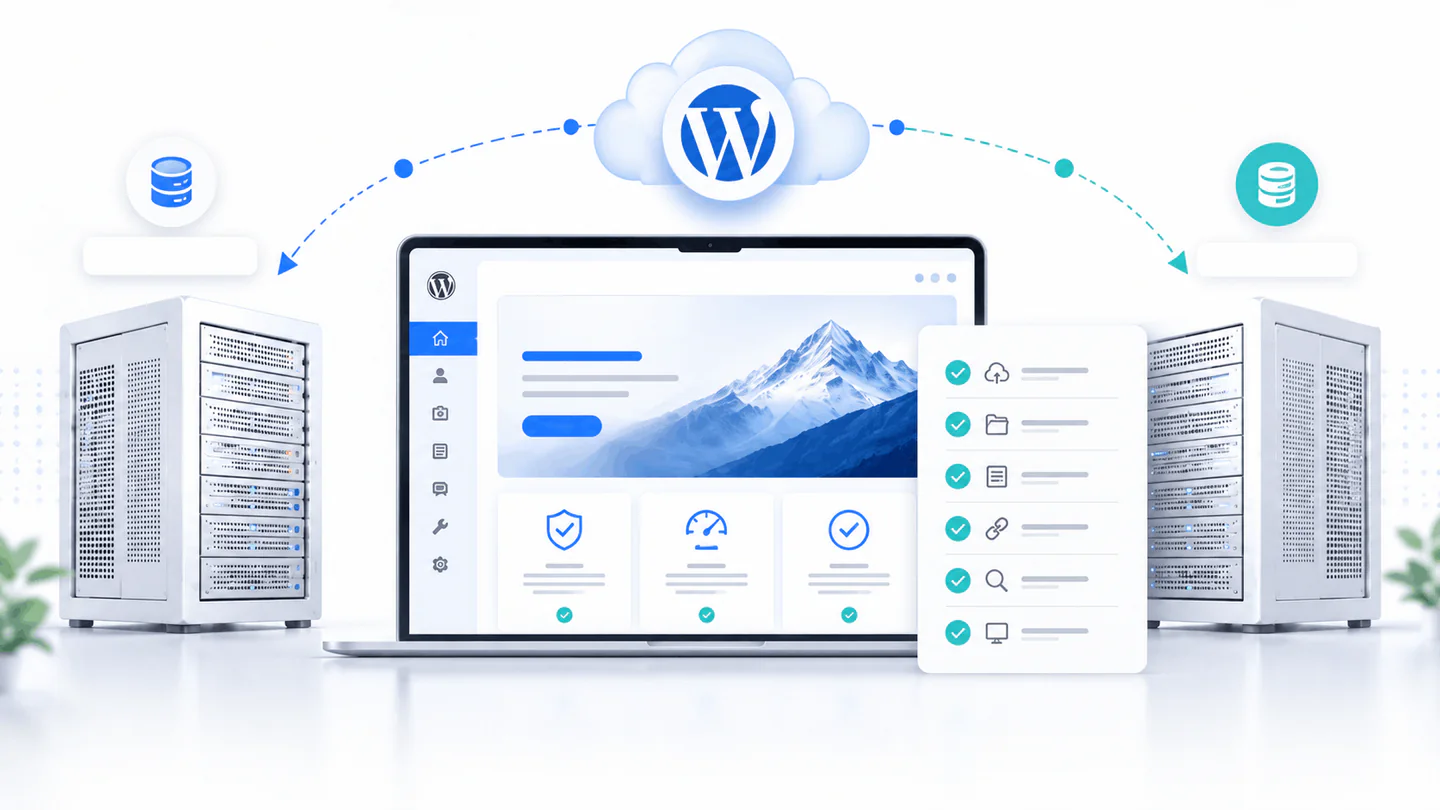
Moving a WordPress website can look simple from the outside: copy the files, export the database, change a few settings, and point the domain to a new server. In practice, a business website may also depend on forms, SMTP, analytics, caching, DNS, SSL, cron jobs, payment gateways, redirects, plugin licences, custom code, and live customer data. A migration is successful only when those systems continue working after the move.
This checklist explains how to move a WordPress website to a new host, server, domain, or installation while reducing the risk of downtime, missing content, broken links, email failures, lost orders, and search visibility problems. It is written for small businesses, site owners, agencies, and developers who want a clear migration process rather than a last-minute copy-and-hope approach.
Quick answer: A safe WordPress migration starts with a verified backup and a complete inventory. Build and test the new environment before changing DNS, move files and the database together, update URLs with a serialization-safe tool, test forms and critical functions, and keep the old server available as a rollback point. If the domain or URL structure changes, create one-to-one permanent redirects, update canonicals and the sitemap, and monitor Search Console after launch.
What Is a WordPress Website Migration?
A WordPress website migration is the process of moving a complete WordPress installation from one environment to another. The move may involve a different hosting company, server, control panel, domain, subdomain, directory, protocol, or website structure. A complete migration normally includes the database, media library, themes, plugins, custom files, configuration, users, forms, integrations, and the settings required for the public site to work.
Google treats a hosting change with the same URLs differently from a site move that changes URLs. A move to a new server while keeping the same domain and paths is mainly an infrastructure change. A new domain, HTTP-to-HTTPS change, or new permalink structure requires search engines and visitors to be redirected from every old URL to the correct new URL.
The migration method should be chosen from the actual risk, not only the site size. A small five-page website with one contact form may be straightforward. A busy WooCommerce store, membership website, multilingual site, or WordPress multisite can require careful data synchronization and a controlled launch window.
Decide Which Type of Migration You Are Doing
New hosting, same domain and URLs
This is the lowest-risk migration when the public URLs remain unchanged. The new server is prepared and tested, the site is copied, and the domain DNS is changed only after the new environment is ready. Search engines should continue seeing the same URLs, although temporary crawling or performance fluctuations can still occur if the new server is misconfigured or unavailable.
New domain or hostname
A domain change affects every public URL. The move requires one-to-one permanent redirects, updated internal links, canonicals, structured data, sitemaps, analytics, advertising destinations, email addresses, and Search Console settings. Do not redirect every old page to the new homepage. Each important old page should lead to its closest equivalent.
New directory or permalink structure
Moving from a subdirectory to the root, changing post paths, removing file extensions, or reorganizing services also changes URLs. Map the old and new addresses before launch and preserve valuable pages wherever possible. Avoid combining a migration, redesign, CMS change, and complete URL rewrite unless the business benefit justifies the extra risk.
Temporary, staging, or local copy to production
Development copies often contain temporary URLs, disabled email, test accounts, noindex settings, or placeholder data. Before launch, replace development URLs safely, enable production services, remove test content, and confirm the live site is indexable. A staging site should be access-restricted so search engines and the public do not discover a duplicate copy.
Create a Pre-Migration Inventory
Before copying anything, document what the website depends on. A migration is easier to test when the important functions are known in advance. The inventory also helps identify systems that are outside WordPress but still affect the website.
- Current host, server IP, control panel, PHP version, database version, storage use, and SSL setup.
- WordPress version, active theme, child theme, must-use plugins, active plugins, and custom snippets.
- Domain registrar, DNS provider, CDN, proxy, firewall, and caching services.
- Contact forms, SMTP provider, CRM, newsletter, booking system, payment gateway, tax, shipping, and third-party APIs.
- Analytics, Google Tag Manager, Search Console, advertising pixels, cookie-consent configuration, and conversion events.
- Cron jobs, webhooks, scheduled imports, backups, object cache, server rules, redirects, and security settings.
- Important user journeys: contact, quote request, purchase, booking, login, account, download, or subscription.
- Current indexed URLs, top landing pages, redirect rules, canonical tags, sitemap location, and robots directives.
Take screenshots of important settings and record the current DNS values before changing them. For a business-critical website, export recent analytics and Search Console data so you have a reference if traffic, conversions, or crawling changes after launch.
Back Up and Verify the Complete Website
A backup is useful only when it contains everything required for recovery and can actually be restored. Create at least one full backup outside the current hosting account. Keeping the only copy on the server being replaced does not provide a reliable rollback plan.
- Export the complete WordPress database, including all table prefixes used by the installation.
- Copy WordPress core files, wp-content, uploads, themes, plugins, mu-plugins, language files, and custom directories.
- Include hidden files such as .htaccess and document important server configuration that will not be copied automatically.
- Save wp-config.php securely, but do not expose database passwords, salts, API keys, or production secrets in public repositories.
- Export DNS records, redirects, email routing, cron jobs, firewall rules, and CDN settings separately.
- For WooCommerce or membership sites, define how new orders, accounts, subscriptions, and form entries will be handled between the backup and launch.
Verify the archive can be opened, confirm the database export is not empty, compare file counts and sizes, and perform a test restoration when the website is valuable or complex. The ability to restore is more important than a green “backup completed” message.
Use the same verification discipline in a regular WordPress maintenance checklist so recovery remains tested after launch.
Prepare the New Hosting Environment
The new server should be prepared before the public domain points to it. Confirm that the hosting environment supports the WordPress version, theme, plugins, and traffic requirements. Newer is not automatically compatible, and copying a website to a different PHP or database version can reveal outdated code that did not fail on the old server.
- Create the database and database user with the correct permissions.
- Install the required PHP version and extensions, and configure memory, upload, execution, and input limits appropriately.
- Confirm disk space, inode limits, database size limits, caching, compression, and backup policies.
- Prepare SSL, but expect the final certificate or proxy configuration to depend on DNS.
- Create a staging URL, hosts-file preview, or host-provided temporary preview that does not expose a public duplicate site.
- Disable real transactional email or payment processing on staging unless controlled tests are planned.
- Configure server-level redirects, security headers, cron, object caching, and CDN integration only when they are compatible with the new environment.
Do not assume the host’s automatic migration tool will transfer every external dependency. Email mailboxes, DNS zones, Cloudflare settings, server cron tasks, licence restrictions, and third-party dashboards may require separate work.
Migrate WordPress Files and the Database Safely
Files and the database represent one website state and should be moved as a coordinated set. Copying files from one time and the database from another can create missing media references, incompatible plugin versions, or orders that do not match uploaded files.
- Place the new site in maintenance or restricted staging mode, not on the public production domain.
- Transfer the complete file set using a reliable method such as a migration tool, SSH, SFTP, hosting archive, or controlled deployment process.
- Import the database and confirm the correct table prefix, character set, collation, and user permissions.
- Update database credentials and environment-specific configuration without overwriting custom constants or security settings blindly.
- Confirm file ownership and permissions, regenerate rewrite rules, and clear server, object, plugin, CDN, and browser caches.
- Open the staging site and review PHP, web-server, WordPress, security, SMTP, and migration logs for errors.
Do not edit WordPress core files to make the move work. If the migration exposes old customizations inside a parent theme or plugin, document them and move them into a safer child theme, custom plugin, or version-controlled snippet when practical.
Update URLs Without Breaking Serialized Data
WordPress stores URLs in many places, including content, media metadata, widgets, theme settings, page-builder data, plugin options, and serialized arrays or objects. A plain text database replacement can corrupt serialized values because the stored string lengths no longer match.
Use a WordPress-aware migration tool or WP-CLI search-replace process that understands serialization. Replace the exact old protocol and hostname with the exact new value, review dry-run results first, and avoid replacing short or ambiguous text that may occur inside unrelated content.
- Update WordPress Address and Site Address correctly.
- Replace old absolute URLs in content, Elementor data, widgets, custom fields, and plugin settings.
- Review hard-coded URLs in CSS, JavaScript, theme templates, tracking scripts, and custom integrations.
- Regenerate Elementor CSS and data where required, then clear every cache layer.
- Check image URLs, favicons, Open Graph images, canonical tags, hreflang, schema URLs, sitemaps, feeds, and API endpoints.
- Keep a database backup from immediately before the replacement so the operation can be rolled back.
Test the Website Before Changing DNS
The safest launch is boring because the public switch happens after the important work is already complete. Test the new environment through a hosts-file entry, temporary preview, or protected staging domain so you can use the final domain internally without sending normal visitors to the new server.
- Homepage, service pages, blog posts, portfolio, legal pages, search, archives, and 404 page.
- Desktop, tablet, and mobile navigation, responsive spacing, popups, sticky elements, and accessibility basics.
- Contact forms, validation, file uploads, autoresponders, SMTP delivery, CRM, newsletter, and webhook integrations.
- WordPress login, editor, Elementor, media uploads, scheduled posts, cron, user roles, and password reset.
- Internal links, external links, redirects, downloads, image loading, mixed content, favicons, and social sharing previews.
- Analytics, Tag Manager, consent mode, conversion events, Search Console verification, and advertising pixels.
- Page speed, caching, compression, object cache, database queries, PHP errors, server errors, and security logs.
- SSL behavior, HTTP-to-HTTPS redirect, preferred www or non-www host, canonical consistency, robots directives, and XML sitemap.
Compare important pages with the old website. A page loading successfully does not prove it is complete. Missing media, incorrect menus, old form recipients, blocked indexing, or a forgotten development banner can be easy to miss without a written checklist.
Protect SEO During a Domain or URL Change
A hosting change with identical URLs should not require page redirects. A domain, protocol, hostname, directory, or path change does. Search engines need consistent signals showing where each page moved.
- Create a complete old-to-new URL map before launch.
- Use server-side permanent redirects, normally 301 or 308, from each old URL to the closest relevant new URL.
- Avoid redirect chains, loops, blanket homepage redirects, meta-refresh, and JavaScript-only redirects.
- Update internal links so they point directly to final URLs instead of passing through redirects.
- Use one self-referencing canonical URL on each indexable page and one preferred hostname consistently.
- Update structured data, Open Graph URLs, hreflang, XML sitemaps, RSS feeds, image URLs, and external campaign links.
- Keep the old domain and redirects active long enough for users, backlinks, and search engines to discover the move.
- For a domain or subdomain move, verify both properties in Search Console and use the Change of Address process when applicable.
- Submit the new sitemap, inspect important URLs, and monitor indexing, crawl errors, rankings, and organic conversions.
Temporary ranking fluctuations can happen while search engines recrawl and process changed URLs. The goal is not to promise that nothing will move. The goal is to remove avoidable technical ambiguity and preserve the relationship between every valuable old page and its new destination.
Switch DNS and Minimize Downtime
DNS determines where visitors are sent. The new server should already be tested before the records change. When practical, reduce the DNS time-to-live in advance, but remember that resolvers may cache records longer than expected. Keep both environments available during the transition.
- Place dynamic sites into a controlled content or order freeze, or plan a final database synchronization.
- Create a final backup immediately before launch.
- Synchronize files and the latest database changes to the new server.
- Confirm the new environment still passes the launch checklist.
- Change the required DNS records at the authoritative DNS provider.
- Monitor old and new server traffic, SSL, uptime, error logs, forms, orders, and email.
- Keep the old server untouched as a rollback option until DNS has propagated and the new site is stable.
Near-zero downtime is possible for many sites, but it depends on DNS behavior, hosting access, cache layers, and how quickly changing data can be synchronized. Do not advertise guaranteed zero downtime when the infrastructure is outside your control.
Complete the Post-Migration Testing Checklist
The public launch is the beginning of monitoring, not the end of the migration. Test from normal networks and devices that are not using your hosts-file preview. Confirm the domain resolves to the expected server and that visitors are not receiving cached content from the old environment.
- Check HTTP status codes, preferred-host redirects, SSL, mixed content, canonical tags, robots, and sitemap access.
- Resubmit the main contact form and confirm inbox delivery, logs, CRM data, and autoresponders.
- Place a controlled WooCommerce test order and verify cart totals, payment, email, order status, stock, tax, and shipping.
- Review WordPress Site Health, PHP logs, server logs, security alerts, failed cron events, and backup jobs.
- Confirm analytics real-time traffic, conversions, consent behavior, and Search Console verification.
- Crawl the site for broken internal links, redirect chains, missing images, orphan pages, duplicate titles, and unexpected noindex tags.
- Compare important page speed and Core Web Vitals indicators with the old host after caches have warmed.
- Check DNS-based email records, SPF, DKIM, DMARC, and mailboxes separately if email services were involved.
- Monitor uptime, forms, orders, traffic, and errors closely for at least several days.
Do not cancel the old hosting immediately. Keep access until backups are stored safely, the new site is stable, dynamic data is confirmed, and the rollback period agreed with the business has passed.
Handle WooCommerce and Other Dynamic Websites Carefully
A brochure website can often be copied and launched from one final backup. A store, membership site, LMS, booking system, or community may receive new data every minute. Orders created after the first database copy will not automatically exist on the new server.
- Schedule a quiet launch window and communicate any temporary checkout or account restriction clearly.
- Use a final database synchronization or selectively migrate new orders, users, subscriptions, bookings, and form entries.
- Prevent test emails, payment captures, renewal charges, and webhooks from firing from the staging copy.
- Check payment gateway callback URLs, webhook secrets, subscription cron, tax, shipping, stock, transactional email, and order numbers.
- Avoid overwriting production orders with an older staging database after the store has continued trading.
- Confirm privacy, backup, and retention requirements before moving customer data between providers or regions.
For a high-volume or heavily customized store, the migration plan may require a developer, hosting provider, and payment or integration specialist. The safest method is the one that protects live data, not the one that copies the site fastest.
Avoid Common WordPress Migration Mistakes
- Changing DNS before the new server has been tested.
- Assuming a migration plugin transferred DNS, email, cron, CDN, firewall, and licence settings.
- Keeping the only backup on the old hosting account.
- Using raw SQL replacement on serialized WordPress data.
- Forgetting Elementor CSS regeneration and multiple cache layers.
- Launching with staging noindex settings, basic authentication, or blocked robots rules still active.
- Redirecting all removed pages to the homepage instead of mapping equivalent content.
- Cancelling the old hosting immediately after the DNS change.
- Ignoring forms and email because the visible pages look correct.
- Overwriting new WooCommerce orders with an old database copy.
- Changing the host, domain, design, platform, URLs, plugins, and SEO structure in one uncontrolled launch.
- Promising zero downtime or guaranteed rankings without understanding the website and infrastructure.
A professional migration is primarily a risk-management process. Tools can automate copying, but they do not decide what must be tested, how live data should be protected, which redirects are correct, or when the old system is safe to remove.
Frequently Asked Questions
Will my WordPress website be offline during migration?
Many WordPress sites can be moved with little or no noticeable downtime when the new server is prepared and tested before DNS changes. A short maintenance window may still be safer for stores or membership sites that receive changing data. DNS caching and third-party infrastructure make absolute zero-downtime guarantees unrealistic.
Will a website migration affect SEO?
A hosting change that keeps the same URLs should have limited SEO impact when the new server is reliable and the site remains crawlable. A domain or URL change creates more risk and requires one-to-one permanent redirects, updated canonicals, internal links, sitemaps, structured data, and monitoring in Search Console.
How long does a WordPress migration take?
A small standard website may be copied and tested within a day, while a large store, multisite, membership platform, or domain migration may require several days of preparation and monitoring. The website size, hosting access, DNS, integrations, email, custom code, and live data determine the real schedule.
Can you migrate WordPress to a new domain?
Yes. A domain migration requires more than copying the site. URLs, redirects, canonicals, schema, analytics, email, DNS, advertising links, sitemaps, and Search Console properties must be updated carefully so users and search engines understand the move.
Do you migrate WooCommerce websites?
WooCommerce migrations are possible, but orders, customers, stock, subscriptions, payment webhooks, tax, shipping, and transactional email require additional testing. A final synchronization or controlled checkout window may be needed so new live data is not lost.
Will moving to a new host make my website faster?
A better server can improve response time and reliability, but hosting is only one part of performance. Images, fonts, plugins, Elementor structure, database overhead, scripts, caching, CDN configuration, and third-party services may still limit speed after the move.
Can email accounts be migrated with the website?
Website hosting and email hosting are separate services even when they are sold in one account. Mailboxes, messages, DNS records, SPF, DKIM, DMARC, forwarding, and devices may require a separate email-migration plan. Do not assume a WordPress migration automatically includes email.
What access is required for a WordPress migration?
The exact access depends on the method. It may include WordPress administrator, old and new hosting, SFTP or SSH, database, domain registrar, DNS provider, CDN, email, and relevant third-party dashboards. Use temporary accounts and the minimum access required, then remove or reduce access after completion.
Can I migrate WordPress myself with a plugin?
A migration plugin can work well for a straightforward site when both hosts are compatible. Manual planning is still needed for large databases, limited hosting, multisite, serialized data, email, DNS, redirects, WooCommerce, custom server rules, or broken existing installations.
What happens if something goes wrong after launch?
Keep the old server and verified backups available during an agreed rollback period. If a critical issue appears, DNS or the application can be returned to the previous environment while the new server is corrected. A rollback plan should exist before the migration begins.
Should I change the website design during migration?
A simple host migration is safer when URLs, content, and design remain stable. A redesign can be combined with a migration, but it increases testing and makes traffic changes harder to diagnose. Separate the projects when there is no strong reason to launch them together.
What should I check before cancelling the old hosting?
Confirm DNS propagation, SSL, forms, email, orders, backups, analytics, redirects, logs, scheduled tasks, and the absence of traffic to the old server. Store independent backups and wait through the agreed stability period before closing the old account.
Need Help Moving Your WordPress Website?
A migration should leave you with the same working website on a more suitable foundation-not a collection of new problems. The safest plan depends on the current host, destination server, website size, domain changes, business-critical features, and how much live data changes during the move.
I help businesses migrate WordPress, Elementor, and WooCommerce websites to new hosting or domains with backups, staging, URL checks, testing, redirects, DNS planning, and post-launch verification. Send the current website URL, the destination host or domain, and any important forms, store, membership, booking, or email requirements. I can then recommend the cleanest scope and migration method.
View the WordPress Website Migration service • Discuss your migration project
Continue Planning Your Website
WordPress Website Migration
Transfer or migrate a WordPress website from one hosting server to another safely. Files, database, plugins, and basic launch checks are handled with care.
Explore Service Case StudyNu-tility Website
A completed business website project for an energy infrastructure company, focused on a professional digital presence and clear service positioning.
View Case Study GuideComplete WordPress Website Maintenance Checklist for Small Businesses
A practical WordPress maintenance checklist for small businesses covering weekly, monthly, quarterly, and annual website care.
Read Guide